BBilal
Shop the Clock
Clock setup guide

Set up your Bilal Clock

From first power-on to a connected prayer-time companion. Follow each stage at your own pace.

6 guided stagesFor Frame & Round
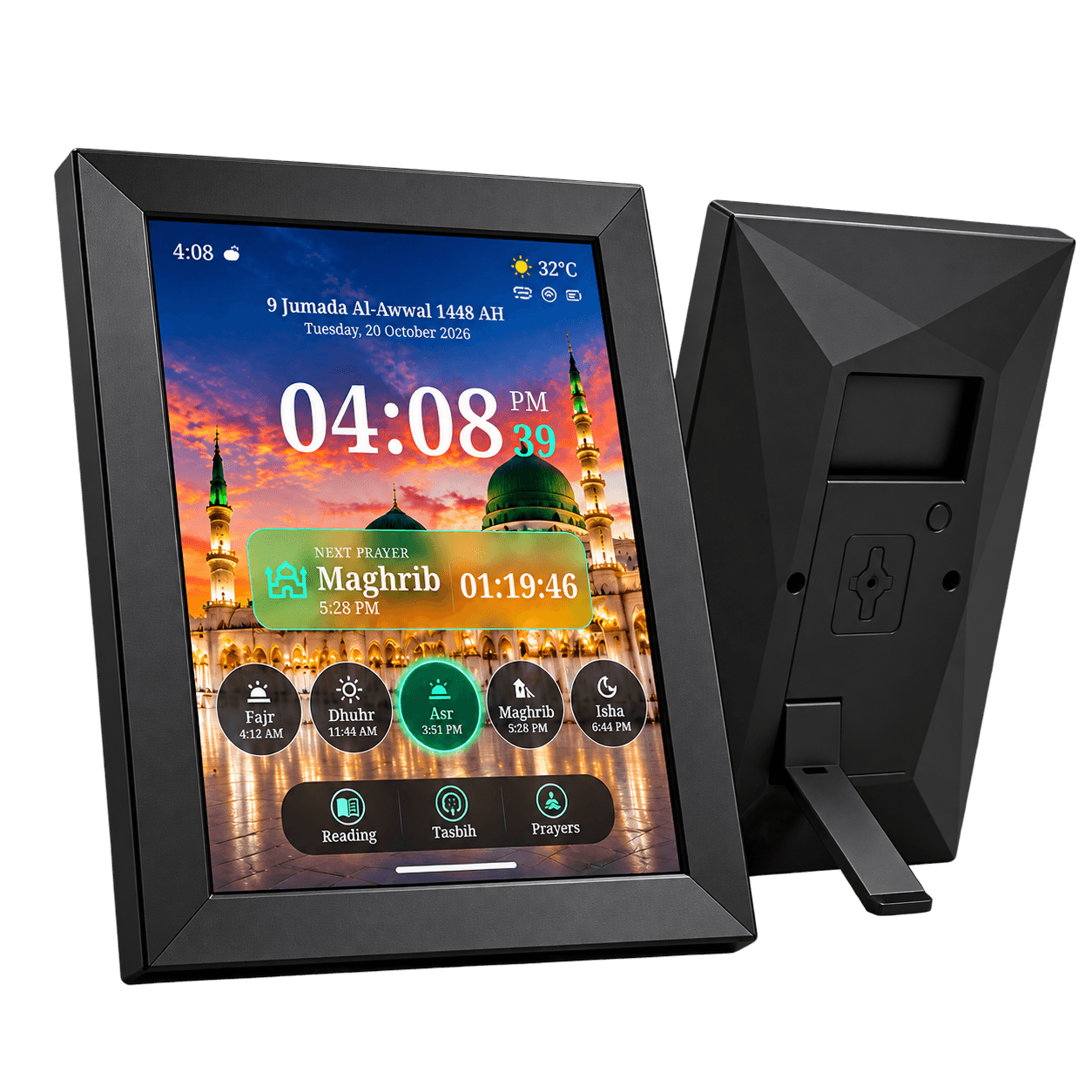
Bilal Frame Azan clock

Step-by-step guide

Your setup journey

01

Getting ready · Stage 1 / 6

Prepare your clock

Get everything in place

Unpack your Bilal Clock and identify whether you have the Frame or Round model. Keep the model-specific instructions supplied with your product close by.

What to do

  1. 1Place the clock on a stable surface suitable for your model.
  2. 2Have the supplied setup instructions available.
  3. 3Keep your phone nearby for the companion app.

Helpful note: If your clock looks different from an illustration, follow the instructions for your exact unit.

Troubleshooting

If setup does not go as planned

See app troubleshooting
01

Troubleshooting guide

Clock does not start

Recheck the supplied power and startup instructions for your exact model. If the unit still does not respond, contact support instead of attempting a repair.

Suggested checks
02

Troubleshooting guide

Wi-Fi connection stops

Confirm that your network works, review the details entered and repeat the current in-app steps. Network compatibility depends on your model.

Suggested checks
03

Troubleshooting guide

Clock is not found in the app

Confirm the clock has started, the app is open, and both devices are ready for connection. Follow the guided pairing steps again.

Suggested checks

Common questions

Clock setup FAQs

Open any question for a clear answer.

Yes. Bilal clocks use Wi-Fi connectivity with the companion app. Follow the network and pairing instructions supplied for your specific model.